

Outlook Mail Setup POP3
POP3 mail account setup guide for Outlook application
Outlook Mail Setup POP3
Follow the steps below to easily set up your mail account
Not: This guide is prepared for Outlook 2016 and later versions.
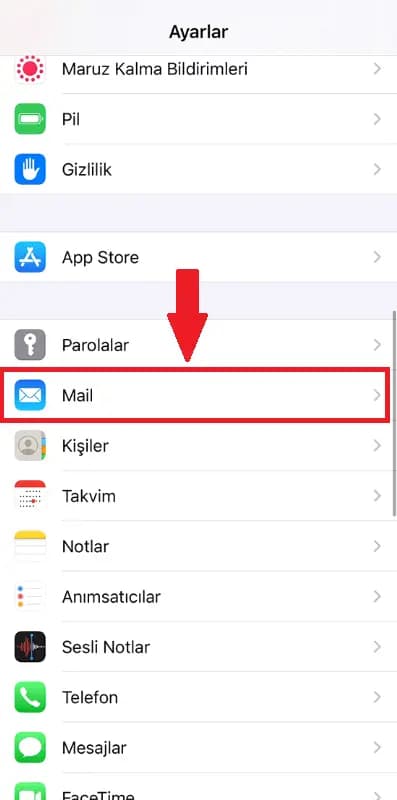
Step 1: Open Settings Menu
Open the Settings app from your iPhone and scroll down to find and tap 'Mail' option.
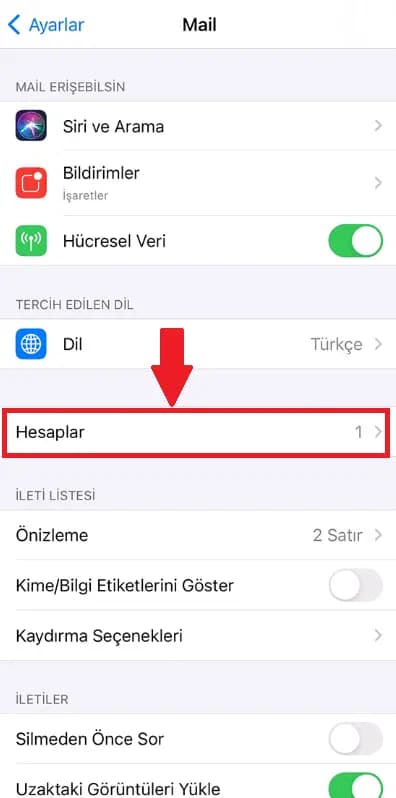
Step 2: Go to Accounts Section
Tap on 'Accounts' option in the Mail settings page.
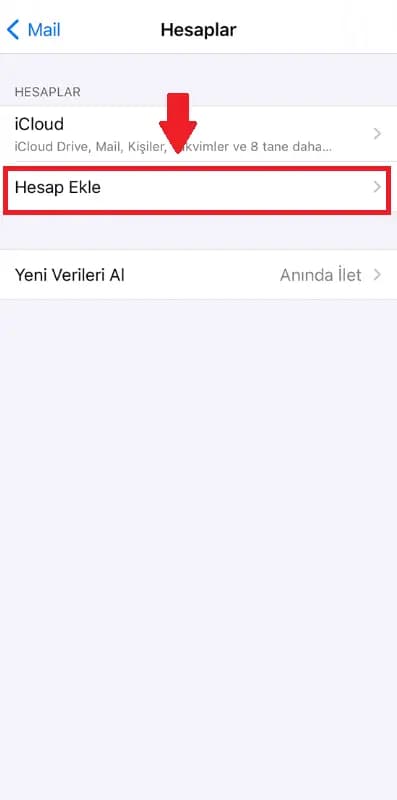
Step 3: Add Account
Tap on 'Add Account' option in the Accounts page.
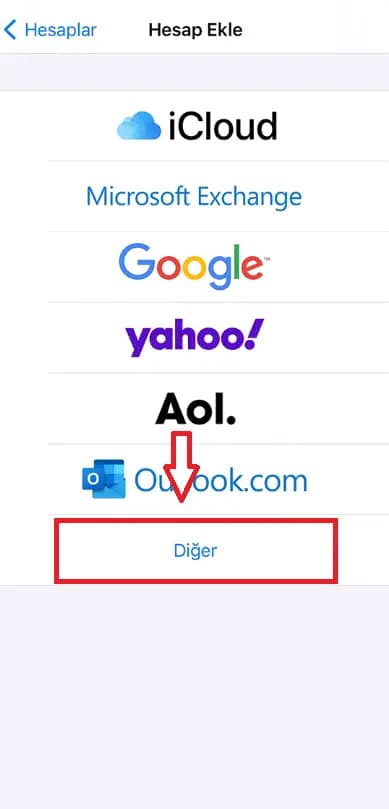
Step 4: Select Other Option
Tap on 'Other' option at the bottom of the email providers list.
Step 5: Add Mail Account
Tap on 'Add Mail Account' option on the opened page.
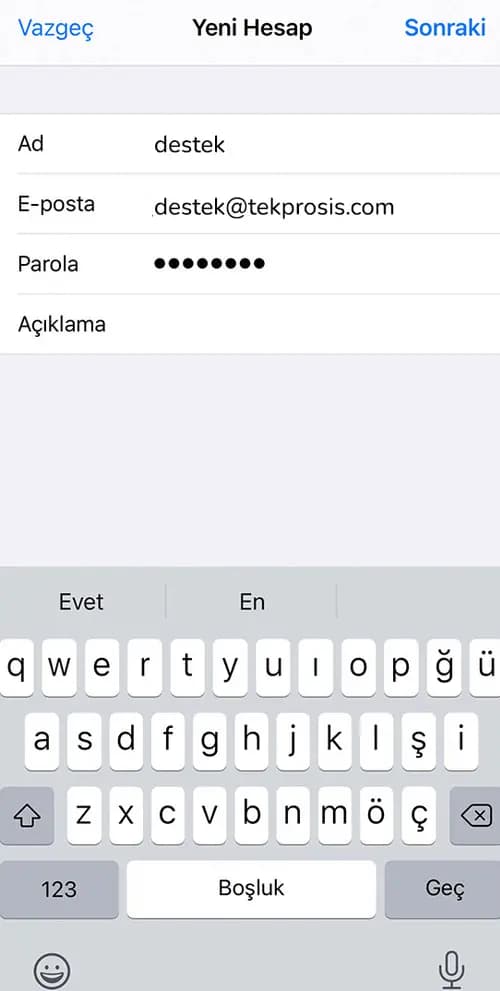
Step 6: Enter Account Information
Fill in the Name, Email, Password and Description fields. Enter your email address and password correctly.
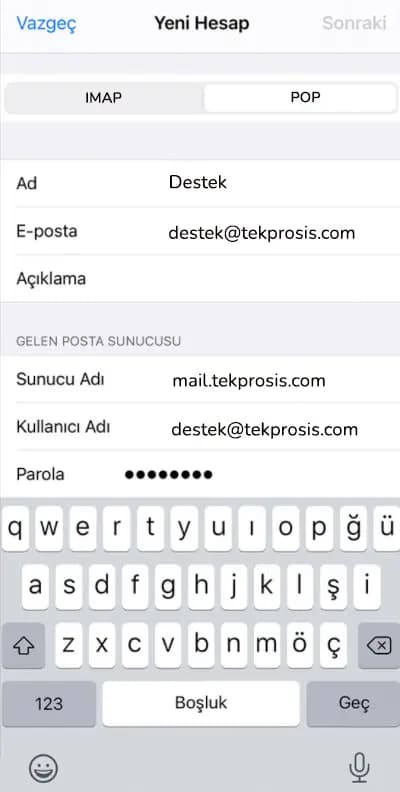
Step 7: Configure Server Settings
Configure incoming and outgoing mail server settings. Enter the required server information for POP3.
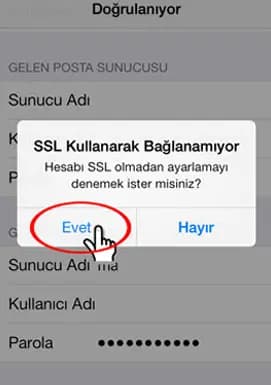
POP3 Server Settings
Incoming Mail Server (POP3)
- Server: mail.domainadi.com
- Port: 110 (SSL: 995)
- Security: SSL/TLS (Recommended)
Outgoing Mail Server (SMTP)
- Server: mail.domainadi.com
- Port: 587 (SSL: 465)
- Authentication: Required
Important: Enter your own domain name instead of "domainname.com". Enter your email address and password in the username and password fields.
📞 Do You Need Help?
If you experience problems during installation, you can get support from our expert team.